Banners Management
Create and manage promotional banners for your casino website. Banners are the large visuals that run in the homepage carousel and send players to your current offers, games, and promotions.
Viewing Banners
See every banner and its status at a glance before you edit, schedule, or reorder them.
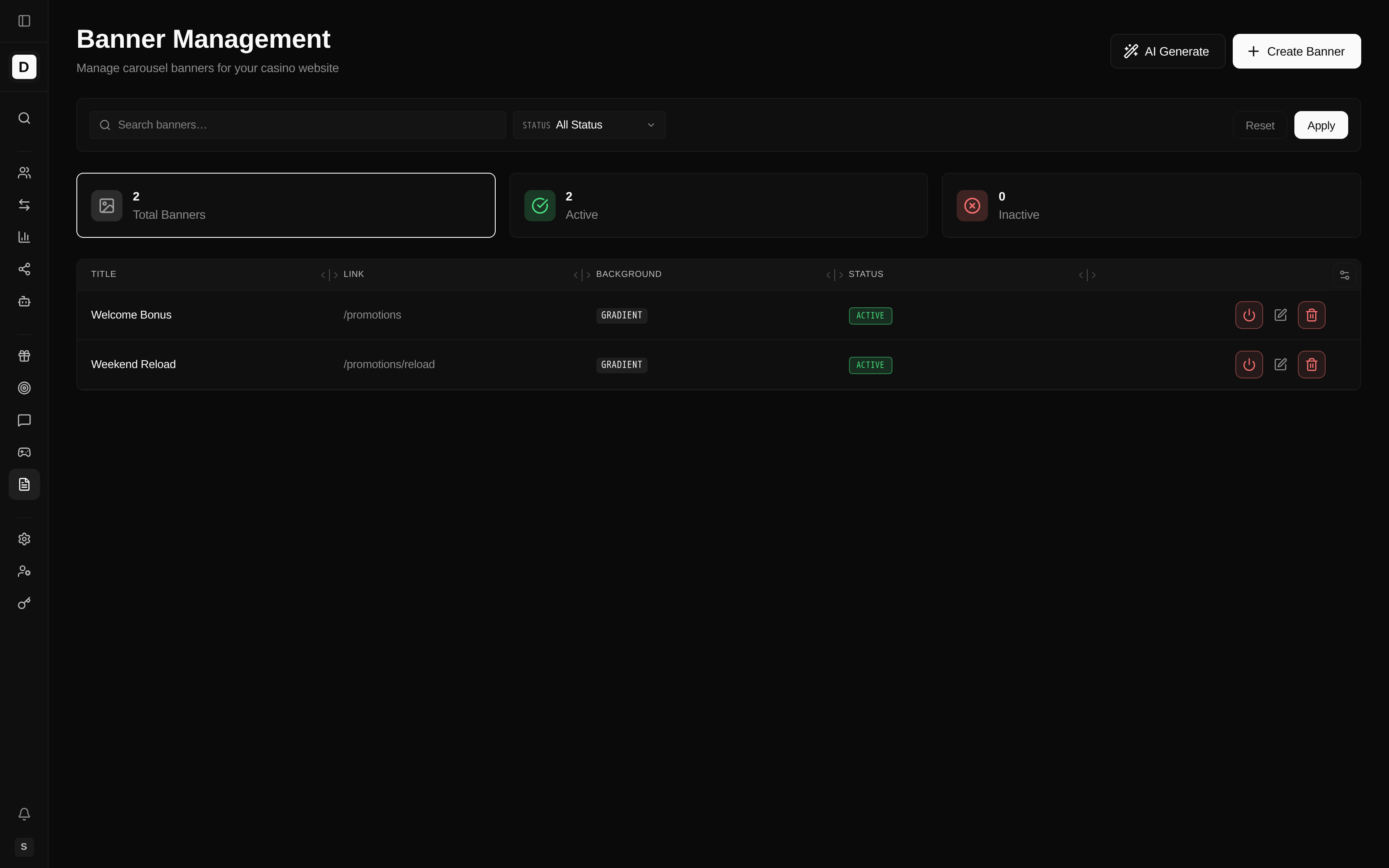
- Navigate to Content > Banners
- View the list of existing banners
- Search by title, or filter by Status (All Status, Active, or Inactive), then click Apply
The three summary cards — Total Banners, Active, and Inactive — double as filters: click a
card to show only banners in that status. Each row displays the banner Title (with its English
heading beneath it), its Link (or "No link"), a Background preview (the image thumbnail, or a
Gradient badge when no image is set), and its Status. Row actions let you activate/deactivate,
edit, or delete a banner.
Creating a Banner
Banners are how you surface promotions to visitors, so this is the main way to advertise an offer on the site.
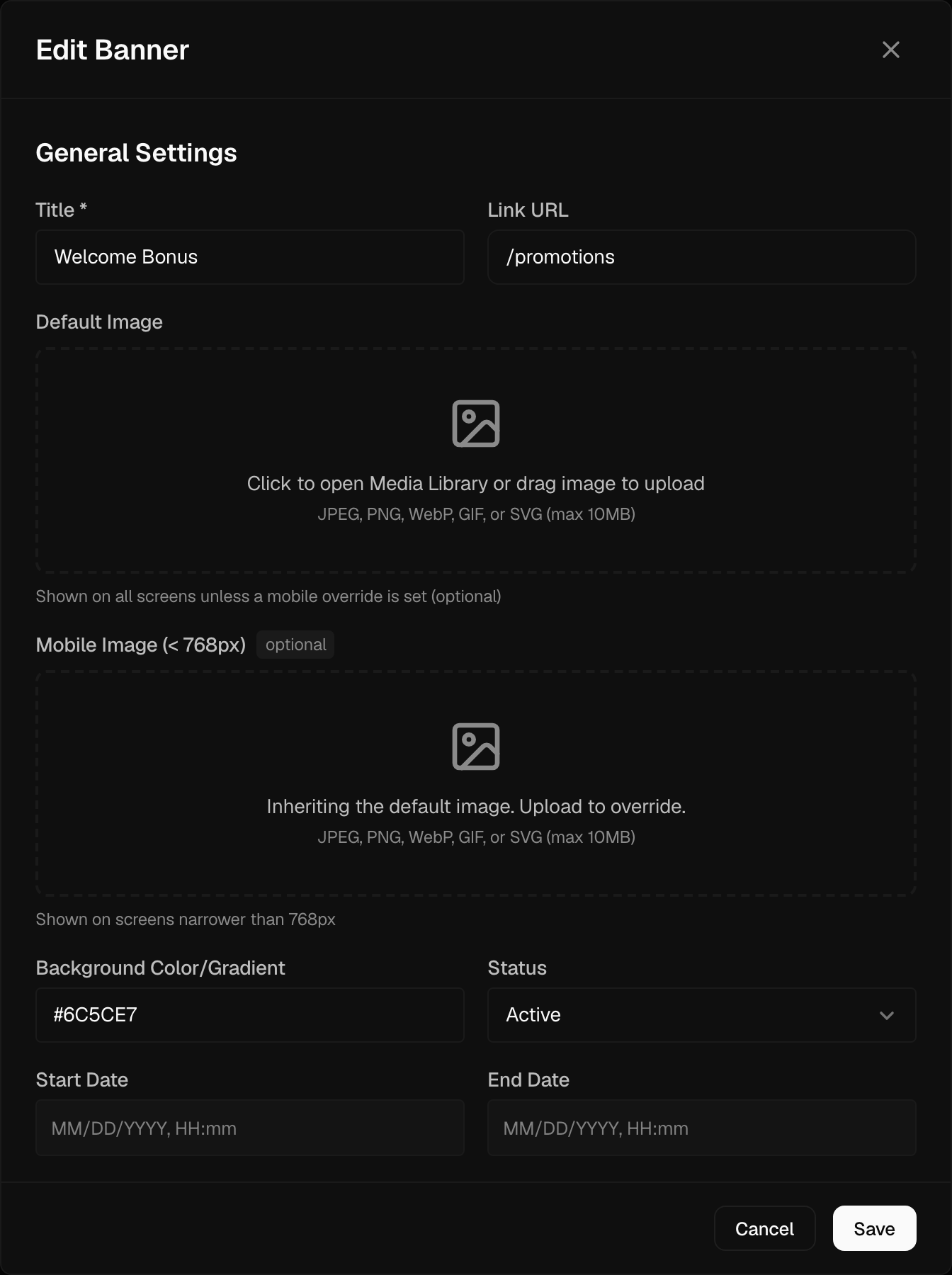
- Click Create Banner
- Fill in the banner details, content, and visibility
- Click Save
You can also click AI Generate in the header to open the Banner Assistant panel. Describe the banner image you want and it generates a background image using artificial intelligence (AI); apply the result to a new banner, or regenerate until it fits.
Banner Details
| Field | Description |
|---|---|
| Title | Internal name for the banner (required) |
| Link URL | Optional destination web address (URL) opened when the banner is clicked |
| Default Image | Optional background artwork shown on all screens (uploaded via the image picker) |
| Mobile Image | Optional override shown on screens narrower than 768px; when empty, the default image is used |
| Background Color/Gradient | Color or gradient used when no image is set (default: a linear gradient) |
| Status | Active or Inactive |
| Start Date / End Date | Optional scheduling window (see Scheduling Banners) |
A banner's visual is a background — either an uploaded background image or a background
color/gradient. When no image is set, the banner uses the background color/gradient, and the list
shows a Gradient badge in the Background column.
Localized Content
Banner text is provided per language, so each configured language sees copy in its own words. Each of the following supports a translation for every language configured on the brand:
| Field | Example |
|---|---|
| Heading | GET 150% BONUS |
| Subheading | +50 Free Spins |
| Badge Text | WELCOME BONUS |
| CTA Text | Claim Now |
The CTA Text is the label on the banner's call-to-action (CTA) button.
Audience / Visibility
Control who sees the banner so an offer only reaches the players it is meant for. The Visibility section ("Who sees this banner?") targets the audience with two independent checkboxes:
- Logged-out visitors (guests) — show the banner to guests
- Logged-in players — show the banner to authenticated players
Select at least one; you can select both. (Saving with neither selected is not allowed.)
You can further narrow the Logged-in players audience to specific player segments. Leave the segment filter empty to target all logged-in players. If you also tick Logged-out visitors (guests), the banner shows to all guests and to logged-in players in any of the picked segments (a composite audience).
Background Image
Upload a background image with the image picker (optional). Images are stored in the Media Library and can be reused across banners. Set a separate Mobile Image to tailor the artwork for narrow screens; leave it empty to reuse the default image. If you leave the default image empty, the banner falls back to its Background Color/Gradient.
Banner Links
The Link URL field is a single, free-form destination. Enter a site-relative path
(e.g. /promotions, /games/slots) or a full external address (e.g. https://…). Leave it empty for
informational banners with no click destination.
If you set CTA Text, you must also provide a Link URL so the call-to-action button has somewhere to go — saving is blocked until you do.
Scheduling Banners
Run a time-limited promotion automatically instead of switching the banner on and off by hand. Scheduling is independent of the Active/Inactive status — it is an optional display window on an active banner, not a separate "Scheduled" status:
- Keep (or set) the banner Status to Active
- Enter an optional Start Date and time
- Enter an optional End Date and time
- Save the banner
An active banner with a start/end window is shown only within that window. Leave the dates empty for a banner that displays as long as it is Active. (The end date cannot be earlier than the start date.)
Using Banners in Carousels
Banners are displayed to players through carousels, which control their order and rotation on the site.
- Go to Content > Carousels
- Select or create a carousel
- Add banners to the carousel
- Set the display order
- Configure rotation settings
Carousel Settings
| Setting | Description |
|---|---|
| Auto-rotate | Automatically cycle through banners |
| Interval | Time between rotations (milliseconds) |
| Position | Where the carousel appears on the site |
Best Practices
- Use clear CTAs - Make the action obvious
- Optimize images - Compress for fast loading
- Mobile-first - Ensure text is readable on phones, and set a Mobile Image where it helps
- Update regularly - Keep content fresh