Notification Templates
Notification Templates define the content and format of messages sent to players. Building reusable templates keeps player messaging consistent and on-brand, and lets you reuse the same wording across automated workflows and one-off manual sends. Create a template for each channel — Email, Short Message Service (SMS), Push, In-App, or Popup — then reference it wherever that message is sent.
Accessing Notification Templates
- Click Communications > Notification Templates in the sidebar
- The templates list displays with filter options
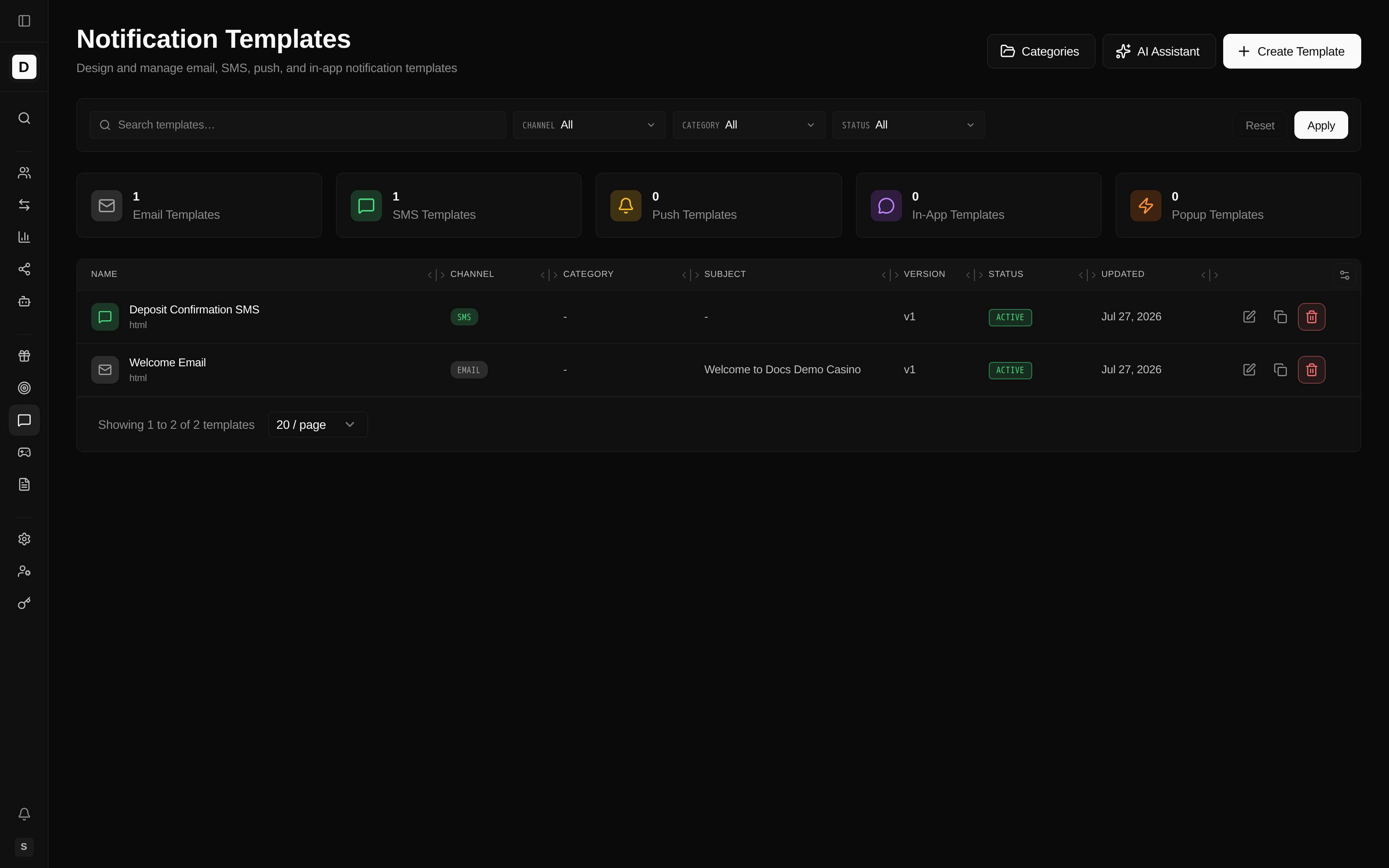
At the top of the page, five per-channel count cards (Email, SMS, Push, In-App, Popup) show how many templates exist for each channel, giving you an at-a-glance picture of your coverage per channel; clicking a card filters the list to that channel.
Template List Columns
| Column | Description |
|---|---|
| Name | Template name (with the content type shown underneath) |
| Channel | Email, SMS, Push, In-App, or Popup |
| Category | The operator-defined category assigned to the template |
| Subject | Email subject line (email only) |
| Version | Current version number |
| Status | Active or Inactive |
| Updated | When the template was last modified |
| Actions | Edit, Duplicate, Delete |
Filtering Templates
- Search - Search by template name
- Channel - Filter by Email, SMS, Push, In-App, or Popup
- Status - Filter by Active or Inactive
- Category - Filter by template category
Channel Badges
Templates are color-coded by channel:
- Email - Blue badge
- SMS - Green badge
- Push - Yellow badge
- In-App - Purple badge
- Popup - Orange badge
Creating a Template
- Click Create Template button
- You'll be taken to the Template Builder
Template Builder Interface
The builder has several sections:
Basic Information
- Template Name - Descriptive name
- Channel - Select communication channel
- Category - A free-form label used to organize templates. Categories are managed per brand from the Categories button on the Notification Templates page (create, edit, delete), so you can define whatever grouping suits your operation.
- Purpose (email and SMS only) -
Transactional(default) orPromotional. Promotional purpose activates unsubscribe-header injection at send time and the compliance banner described under Testing Templates.
Email-Specific Fields
- Subject - Email subject line
- Content Editor - See Content Editor below
Sender & Delivery Settings
The template's Settings tab exposes optional per-template overrides (under Advanced, for email and SMS templates):
- From-name override - Overrides the sender display name for this template's emails.
- Provider config override - Send this template through a specific provider configuration instead of the brand default.
SMS-Specific Fields
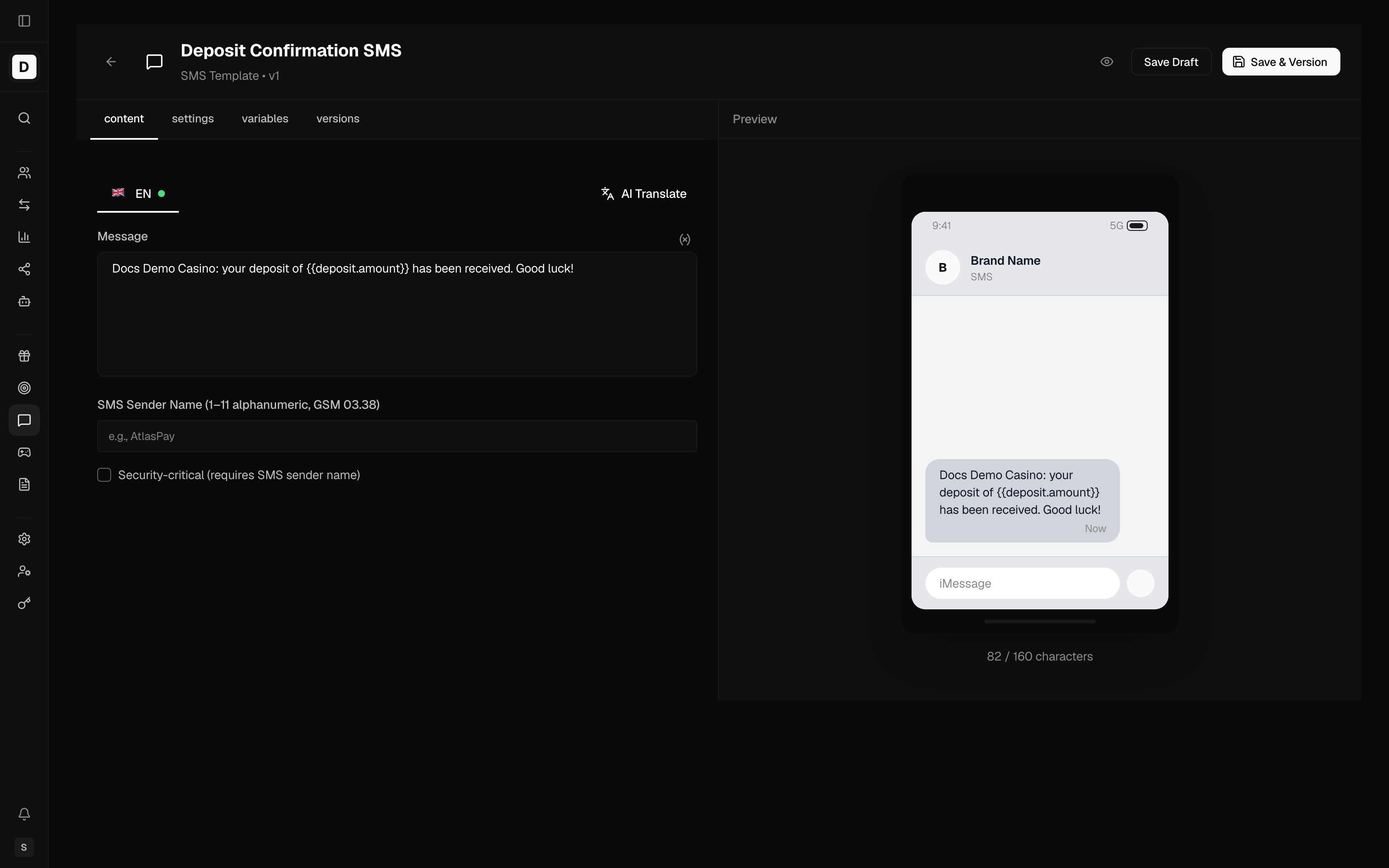
- Message - Plain text content
- Character Count - Shows remaining characters
- SMS sender name - The alphanumeric sender ID for SMS (1–11 alphanumeric GSM-7 characters).
- Security-critical flag - Marks the template as security-critical, which exempts it from marketing opt-out / unsubscribe gating so essential messages always reach the player (used for One-Time Password (OTP) and account-security messages); when set, it makes the SMS sender name required.
Push Notification Fields
- Title - Notification title
- Body - Notification message
In-App Fields
- Title - Message title
- Body - Message content
- Action URL - The web address (Uniform Resource Locator, or URL) opened when the message is clicked
- Action Text - Button text
Popup Fields
- Title and Body - Popup heading and message
- Primary Action - Action text + URL
- Secondary Action Text - Optional second button (e.g. "Maybe Later")
- Image URL - Optional image
- Style - Modal, top banner, bottom banner, or corner
- Priority - Urgent, high, normal, or low
- Delay - Seconds to wait before showing
- Auto-dismiss - Optional seconds after which the popup closes itself
- Show close button - Toggle the close (X) control
- Theme - Solid or gradient background, configured separately for dark and light
- Expiry - Value + unit (minutes / hours / days) after which the popup no longer shows
Content Editor
For email, the builder offers two editor modes:
- Blocks - A drag-and-drop block builder. Available block types are Header, Text, Button, Image, Divider, and Spacer, plus global styles (font family, background/text/link colors, content width). Text blocks use a rich text editor (formatting, headings, lists, links, images) with variable insertion. Blocks are compiled to HyperText Markup Language (HTML) when the template is saved.
- HTML - Paste or edit raw HTML directly.
Other channels (SMS, Push, In-App, Popup) use plain text fields with variable insertion.
Per-Language Localization
A language switcher lets you author content per brand language. Each language has its own copy of the content fields, so a single template can carry, for example, English, German, and Finnish versions.
An artificial-intelligence (AI) Translate action populates other languages from a chosen source language, saving you from writing each localized version by hand — pick the source language and one or more target languages, and the builder fills in the translated content (block text, subject, or body) for you to review and edit.
Preview
Toggle preview to see how the template will appear:
- Desktop preview
- Mobile preview
- Variable substitution preview
Saving
- Save Draft - Save your changes without creating a new version
- Create Template (new templates) / Save & Version (existing templates) - Save the template; using Save & Version on an existing template creates a new version
Activation is separate from saving — turn a template on or off with the Active toggle on the Settings tab.
Using Variables
Variables use double-brace, dotted paths: {{ namespace.field }}. The interpolation engine only recognizes this form — single-brace names like {firstName} are rendered as literal text and never substituted.
Always-Available Variables
| Variable | Description | Example |
|---|---|---|
{{player.id}} | Player unique ID | "123e4567-…" |
{{player.email}} | Player's email | "[email protected]" |
{{player.firstName}} | Player's first name | "John" |
{{player.lastName}} | Player's last name | "Doe" |
{{player.phone}} | Player's phone number | "+491234567890" |
{{player.countryCode}} | Player's country code | "DE" |
{{player.currencyCode}} | Player's currency code | "EUR" |
{{brand.name}} | Brand name | "Royal Casino" |
{{brand.url}} | Brand website URL — renders on the brand's TDS domain in email, SMS and web push when one is configured (casino domain otherwise), and always the casino domain in in-app and popup | "https://royalcasino.com" |
Trigger-Scoped Variables
Additional variables are available only for the trigger a template is used with — for example:
- Deposit -
{{deposit.amount}},{{deposit.currency}},{{deposit.method}} - Bonus -
{{bonus.amount}},{{bonus.name}},{{bonus.wageringRequired}},{{bonus.expiresAt}} - Withdrawal -
{{withdrawal.amount}},{{withdrawal.currency}},{{withdrawal.status}} - Loyalty -
{{loyalty.levelName}},{{loyalty.previousLevelName}},{{loyalty.changeType}}
The builder's variable inserter shows the full, up-to-date list for the selected trigger and channel.
Marketing Variables
For promotional emails, use {{unsubscribeUrl}} or {{preferencesUrl}}; for promotional SMS use {{unsubscribeShortUrl}} (a short alias that fits the 160-character limit). Email templates may also use {{email.assetsUrl}} (email channel only) as the base URL for hosted images.
The | currency Pipe
Money fields accept an optional | currency pipe that formats the value using the player's currency symbol and formatting rules:
Hello {{player.firstName}},

Your deposit of {{deposit.amount | currency}} has been processed.

Best regards,
{{brand.name}}
AI Assistant
Use the AI Assistant to draft or refine copy quickly instead of writing every template from scratch. Click the AI Assistant toggle to get help:
- Enable the assistant panel
- Describe what you want
- Review generated content
- Apply or edit the suggestion
AI Capabilities
- Generate template content
- Suggest subject lines
- Improve existing copy
- Create variations
Template Categories
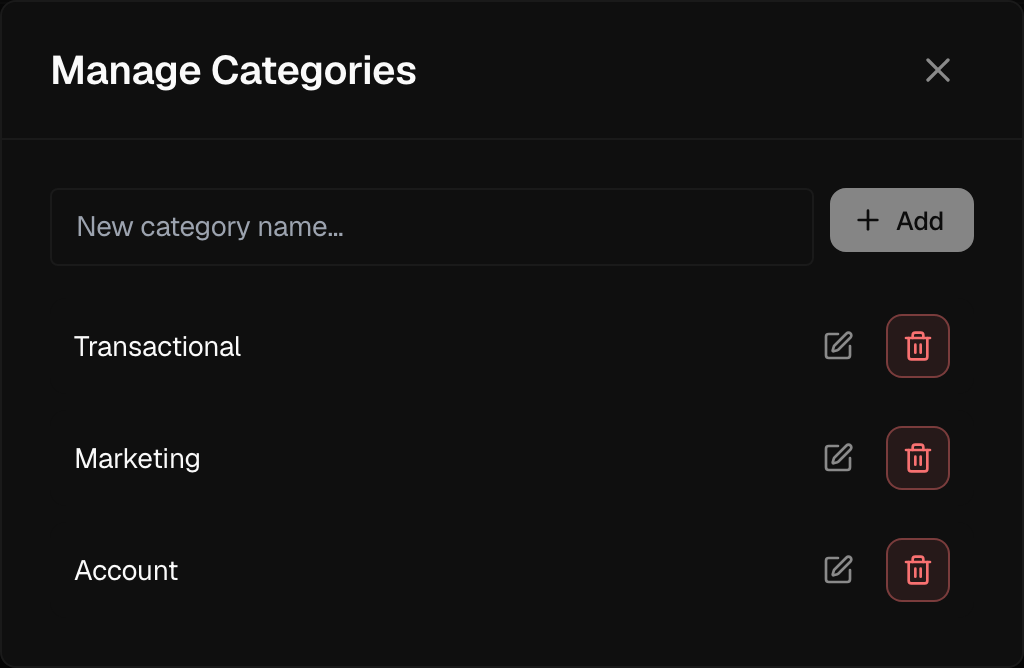
Categories are free-form labels you define per brand to organize templates however suits your operation. Open the category manager with the Categories button on the Notification Templates page to:
- Create a category with a name
- Edit or Rename an existing category
- Delete a category
Once created, a category can be assigned to any template and used to filter the list. Common examples operators create include payment confirmations, bonus offers, and security alerts, but the labels are entirely up to you.
Editing a Template
- Click Edit on the template row
- Modify in the Template Builder
- Save your changes with Save Draft or Save & Version
Note: Save & Version creates a new version. To turn a template on or off, use the Active toggle on the Settings tab.
Duplicating a Template
Duplicate a template to reuse a proven layout as the starting point for a new message instead of rebuilding it.
- Click Duplicate on the template row
- A copy is created with a " (Copy)" suffix (subsequent copies use " (Copy 2)", " (Copy 3)", …)
- Edit and customize the copy
Version History
Version history preserves a record of each published change, so you can see how a template evolved and keep earlier wording on file.
Templates maintain version history:
- Each Save & Version creates a new version
- Previous versions are preserved
- Version number displayed in list
Best Practices
Email Templates
- Use responsive HTML design
- Keep subject lines under 50 characters
- Include preheader text
- Test across email clients
- Include unsubscribe link
SMS Templates
- Stay under 160 characters
- Use clear, action-oriented language
- Include opt-out instructions
- Avoid special characters
Push Notifications
- Keep titles under 40 characters
- Body under 100 characters
- Use action-oriented copy
- Consider timing
In-App Messages
- Use clear calls to action
- Don't interrupt critical flows
- Provide dismiss option
- Keep content scannable
Testing Templates
Test Send
Once an email template has been saved, the builder shows a Send test email action. Enter a recipient address and the message is sent to that inbox exactly as a player would receive it, so you can confirm rendering, variable substitution, and links before the template goes live. This catches formatting or content problems while they are still cheap to fix.
Before going live:
- Send a test to yourself
- Check variable substitution
- Verify links work
- Test on multiple devices
- Review in different email clients (for email)
Marketing Compliance Banner
When a template's Purpose is Promotional, the editor shows a compliance warning if the message is missing the required unsubscribe affordance:
- Email - must include
{{unsubscribeUrl}}or{{preferencesUrl}} - SMS - must include
{{unsubscribeShortUrl}}
The check runs per language, so a warning is shown for any localized version that is missing the affordance.