Translations
Translation Management holds the multi-language text your player-facing site displays. Each piece of on-site copy is stored under a translation key, and every configured language has its own value for that key — so the same button, heading, or message can be shown in each language your brand supports.
Accessing Translations
- Click Content > Translations in the sidebar.
- The page opens on a two-tab layout: Keys and Coverage.
Definitions
Define these terms once, before the procedures that use them:
| Term | Meaning |
|---|---|
| Translation key | A named identifier for one piece of text (for example common.deposit). Each key holds one value per language. |
| Category | A free-text label you assign to a key to group related keys together (for example common, home, promotions). Used for filtering and organization. |
| Coverage | How complete each language is — which keys still need a translation for that language. |
Interface Layout
Keys tab
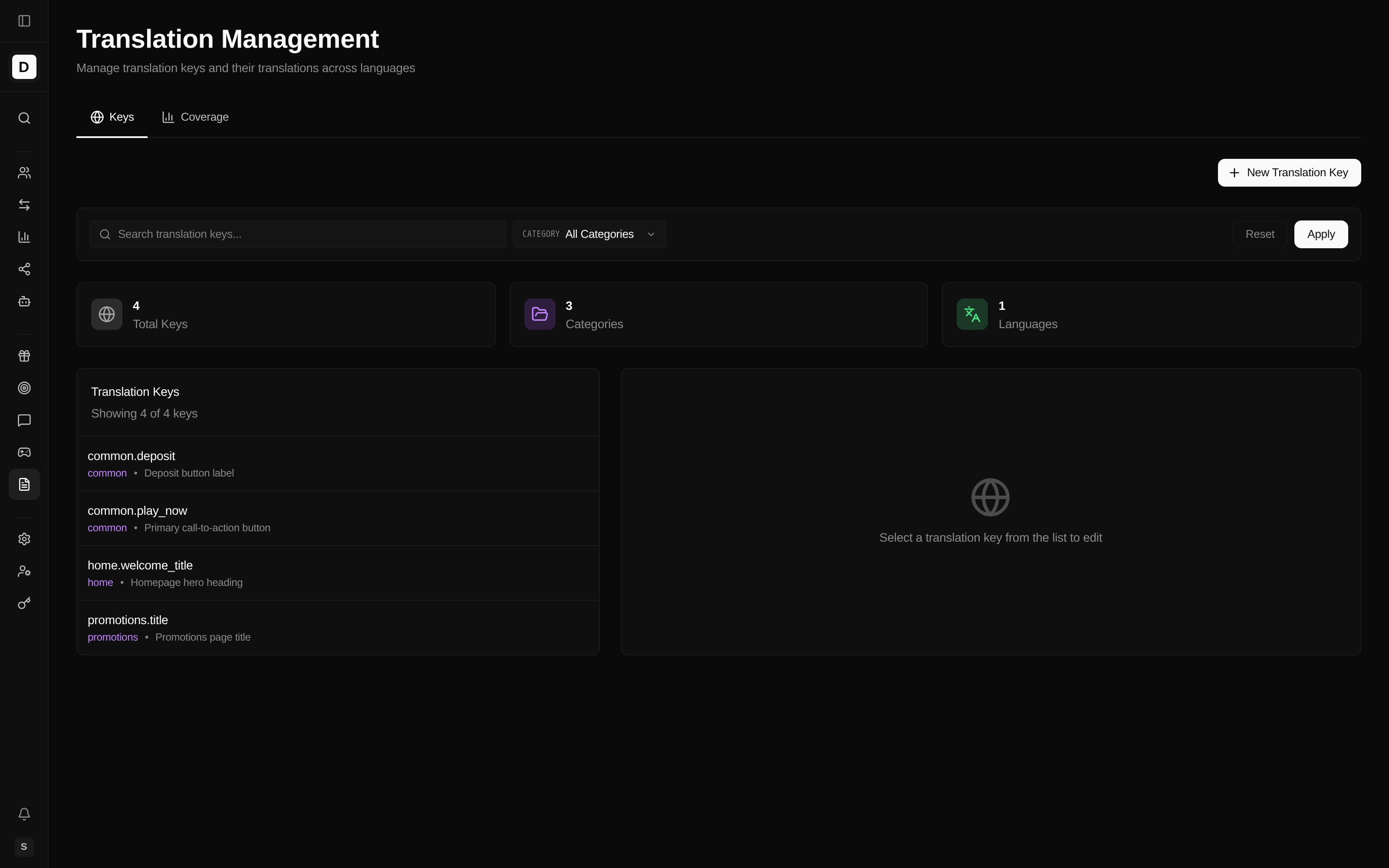
The Keys tab is the translation editor. A filter bar and three summary cards sit above two panels:
- Filter bar — a Search box, a Category dropdown, and Apply / Reset buttons. Enter a search term or pick a category and click Apply to narrow the list; Reset clears the filters.
- Summary cards — Total Keys, Categories (the number of distinct categories in use), and Languages (the number of languages configured for the brand).
- Key list (left) — every key with its category and description; the header shows how many keys are being displayed. Click a key to open it for editing.
- Editor (right) — the selected key's translations, with one field per language. Until you pick a key it reads "Select a translation key from the list to edit."
Edits are not auto-saved. Changing a value marks the key as having unsaved changes; click Save All Changes to persist every changed language at once. If you try to switch to another key with unsaved edits, you are prompted to discard them first.
Coverage tab
The Coverage tab reports per-language completeness and lists the keys that still need attention. See Translation Coverage.
Translation Key Format
Keys use a namespaced, dotted format so related text stays grouped:
category.feature.element
Examples (from the key list):
common.deposit— Deposit button labelcommon.play_now— Primary call-to-action buttonhome.welcome_title— Homepage hero headingpromotions.title— Promotions page title
Creating a Translation Key
Create a key whenever a new piece of on-site text needs to be shown in each configured language.
- Click New Translation Key (top right) to open the Add Key modal.
- Fill in the details:
- Key — the namespaced identifier (for example
common.welcome). - Category — a grouping label (for example
website); type any label you like. - Description — context for translators (optional).
- Key — the namespaced identifier (for example
- Enter the text for each of the brand's configured languages.
- Click Create Key.
The languages shown come from the brand's configuration, not a fixed list — see Language Support.
Editing Translations
Edit translations to update the exact wording players see on the site.
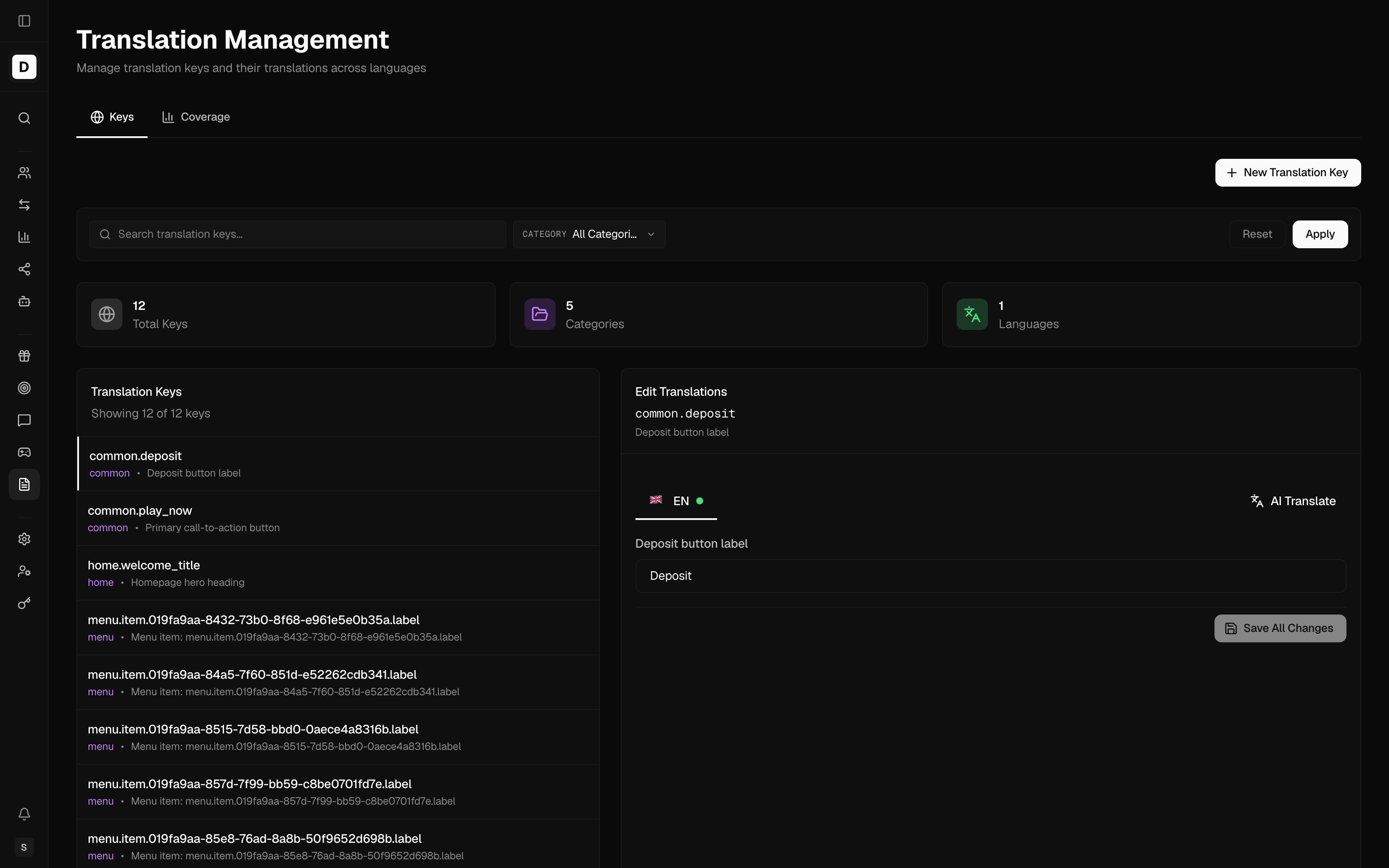
- On the Keys tab, select a key from the list.
- Edit the text for each language in the editor.
- Click Save All Changes to persist your edits.
An Unsaved changes indicator appears while edits are pending. If you switch to another key with unsaved edits, you are prompted to discard them first.
Categories
A category is a free-text label you assign to each key to keep related text together — there is no
fixed list, so you can use whatever grouping suits your site (common patterns include common,
home, promotions, navigation, errors). New keys default to the website category. The
Category dropdown on the Keys tab lists whichever categories are currently in use, and the
Categories summary card counts them.
Language Support
The set of languages shown in the editor is dynamic — it comes from the brand's configured languages, not a fixed built-in list. The languages below are only illustrative:
| Language | Code |
|---|---|
| English | en |
| German | de |
| Spanish | es |
| French | fr |
| Portuguese | pt |
| Italian | it |
Languages are configured at the operator/brand level. See Operators.
Translation Coverage
Use Coverage before a launch to confirm every configured language is fully translated. The tab opens with the total number of keys the site expects and a refresh control, then breaks the picture down:
- Per-language coverage — how complete each configured language is against the full set of keys.
- Missing translations — keys that have no value yet for the selected language(s). Pick the languages to check from the Languages selector; each row shows the English text as a reference, with an Add action to create that key. Rows marked New are not stored for the brand yet.
- Bulk-fill for selected languages — a single action that adds all the listed missing keys for the chosen languages in one step, so you can then fill in their wording from the Keys tab.
- Not in Code — keys stored for the brand that the site no longer uses; review each and delete it if it is no longer needed.
For keys that have no translation in a given language, the English value is shown alongside as a reference so you can see the intended text while you fill the gap.
Best Practices
- Use descriptive, hierarchical key names.
- Keep translations concise.
- Review translations with native speakers.
- Maintain consistent terminology across keys.
- Run Coverage and test every language before a launch.
- Add or update keys whenever you add site features.