Pages Management
Create and edit content pages for your casino website — such as About Us, Terms, and promotional landing pages — from the Content Management System (CMS). Pages let you publish informational, legal, and promotional content on the player-facing site without a developer.
Terms used on this page
| Term | Meaning |
|---|---|
| Slug | The path part of a page's web address (URL) — for example, about-us produces /about-us. |
| Page type | Chooses which editor the page uses. Set at creation and fixed afterwards. |
| Status | Whether the page is Active (served to players) or Inactive (saved but hidden). |
| SEO | Search Engine Optimization — the title, description, and keywords search engines read. |
Viewing Pages
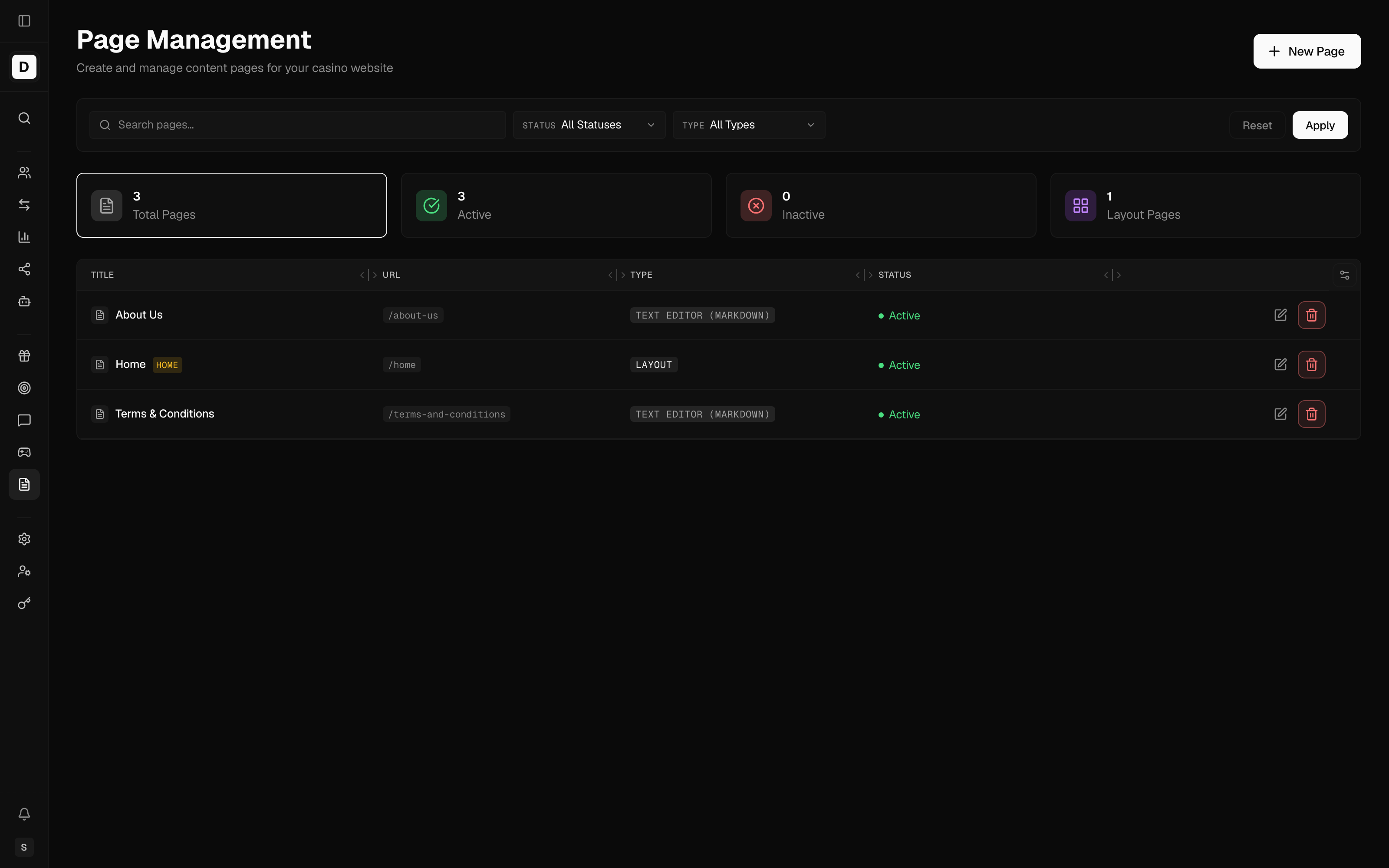
- Open Content > Pages
- Browse the list of existing pages
Each row shows the page title (with a Home badge on the current homepage), its web address (URL), its page type, and its status. Four summary cards above the list count the total pages, the Active pages, the Inactive pages, and the pages built with the Layout type; clicking a card filters the list to that group.
Filter the list with the search box (matches title or slug), the Status filter (Active or Inactive), and the Type filter.
Creating a Page
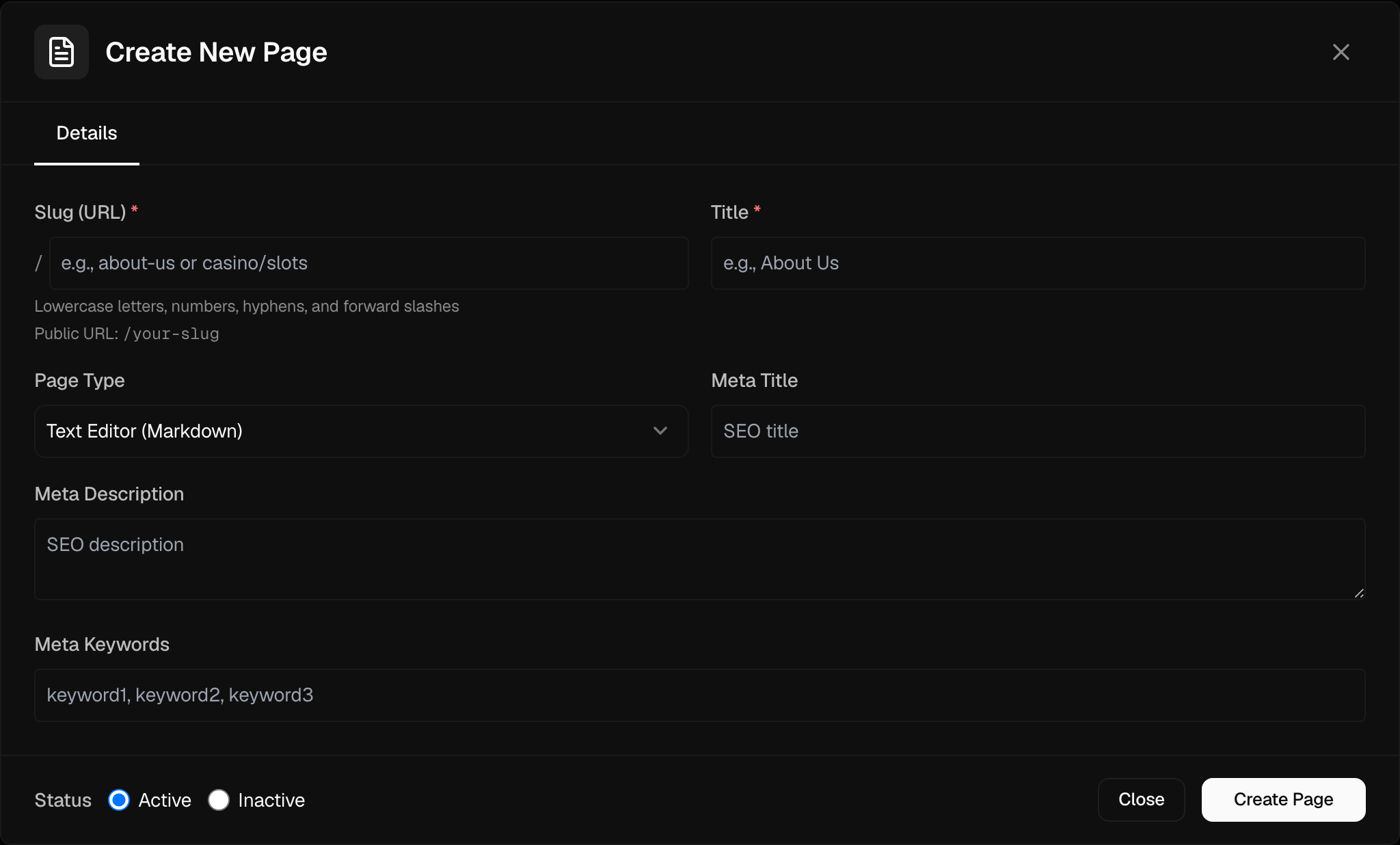
- Click New Page
- Fill in the page details on the Details tab
- Click Create Page
The title and, for a new page, the slug are required. After the page is created, reopen it to add its content on the Content tab.
Page Details
The Details tab holds these fields:
| Field | Description |
|---|---|
| Slug (URL) | The path for the page's web address (e.g., about-us, or a nested path such as casino/slots). Lowercase letters, numbers, hyphens, and forward slashes only. |
| Title | The page title. |
| Page Type | Chooses the editor for the page (see Page Types). It cannot be changed after the page is created. |
| Meta Title | The SEO title shown in search results. |
| Meta Description | The SEO summary shown in search results. |
| Meta Keywords | Optional comma-separated keywords for search engines. |
The Status control (Active / Inactive) sits at the bottom of the editor and applies on both tabs.
Content and Display Title
On an existing page, the Content tab holds:
- Display Title — a toggle that shows or hides the page title on the website.
- Page Title — the on-page title, which you can enter per language.
- The page content editor, which depends on the page type (see below).
Saving content asks you to confirm publishing; once confirmed, the change goes live on the website immediately and all visitors see it. This confirmation exists because content saves publish straight to the live site rather than into a draft.
Page Types
The Page Type determines which editor a page uses:
| Type | Editor | Use For |
|---|---|---|
| Text Editor (Markdown) | Markdown / rich-text editor | Legal and informational content written as text |
| Custom | Text editor | A page type for content handled by a specialized website template |
| Layout | Section layout builder | Composed pages built from stacked sections |
The Layout builder assembles a page from ordered sections. Each section picks a content block and a column width, and has its own background color and top/bottom spacing. Layout sections can embed other content built elsewhere in the CMS — for example menus, carousels, banners, game lists, provider lists, card lists, and tournament leaderboards.
When you save a Layout page, any section that would not display on the live site (for example a section with nothing selected yet) is listed so you can fix it or publish anyway.
Setting the Homepage
Choose which page loads at the site's root address:
- Open the page you want as the homepage
- Click Set as Homepage
Only one page is the homepage at a time; setting a new one replaces the previous choice. The current homepage shows a Homepage indicator in the editor and a Home badge in the list.
Page URLs
The slug determines the page's web address:
- Slug:
terms-and-conditions - URL:
https://yoursite.com/terms-and-conditions
URL Best Practices
- Use lowercase letters
- Use hyphens instead of spaces
- Keep addresses short and descriptive
- Avoid special characters
SEO Settings
Fill in the SEO fields on the Details tab to help search engines index the page:
- Meta Title — the title shown in search results (around 50–60 characters works well).
- Meta Description — the summary shown in search results (around 150–160 characters works well).
- Meta Keywords — optional comma-separated keywords for the page.
Page Templates
Common pages operators create include:
Legal Pages
- Terms and Conditions
- Privacy Policy
- Responsible Gaming
- Cookie Policy
Promotional Pages
- Welcome Bonus Landing
- VIP Program
- Promotions Overview
Informational Pages
- About Us
- Contact
- FAQ
- Help Center
Active and Inactive Pages
A page is either Active or Inactive. Use the Status filter on the list to view each group.
Active
- The page is live and reachable at its web address.
Inactive
- The page is saved but not served to players.
- Useful for work-in-progress content, or for temporarily taking a page off the site.
Switch a page between Active and Inactive from the Status control in the page editor.
Deleting Pages
- Find the page in the list
- Click the delete icon
- Confirm the deletion
Deleted pages cannot be recovered. Set the page to Inactive instead if you might need the content later.
Page Permissions
The New Page, Edit, and Delete controls appear only when your operator role includes the matching content permission. A role limited to viewing content can open the list and read pages, but the create, edit, and delete controls stay hidden.
Linking to Pages
To link to a page from other content (such as banners or menus):
- Copy the page's web address or slug
- Paste it into the link field
- For links within your own site, use the path form:
/about-us