Menus
Menus are part of the Content Management System (CMS) — the section for managing games, banners, carousels, pages, and menus. A menu defines the navigation links players see on your casino website: you build header, footer, sidebar, and mobile navigation, each with a hierarchy of menu items, so players can move between sections of the site.
Accessing Menus
- Open Content > Menus in the sidebar. The page is titled Menu Management.
- The page shows a search and status filter, three summary cards (Total Menus, Active Menus, Inactive Menus), and a table of your menus.
Creating or editing a menu opens a window. Menu items are added and edited inside that window, which carries its own item list and item editor — the item editor is not a permanent panel on the Menus page itself.
Menu List
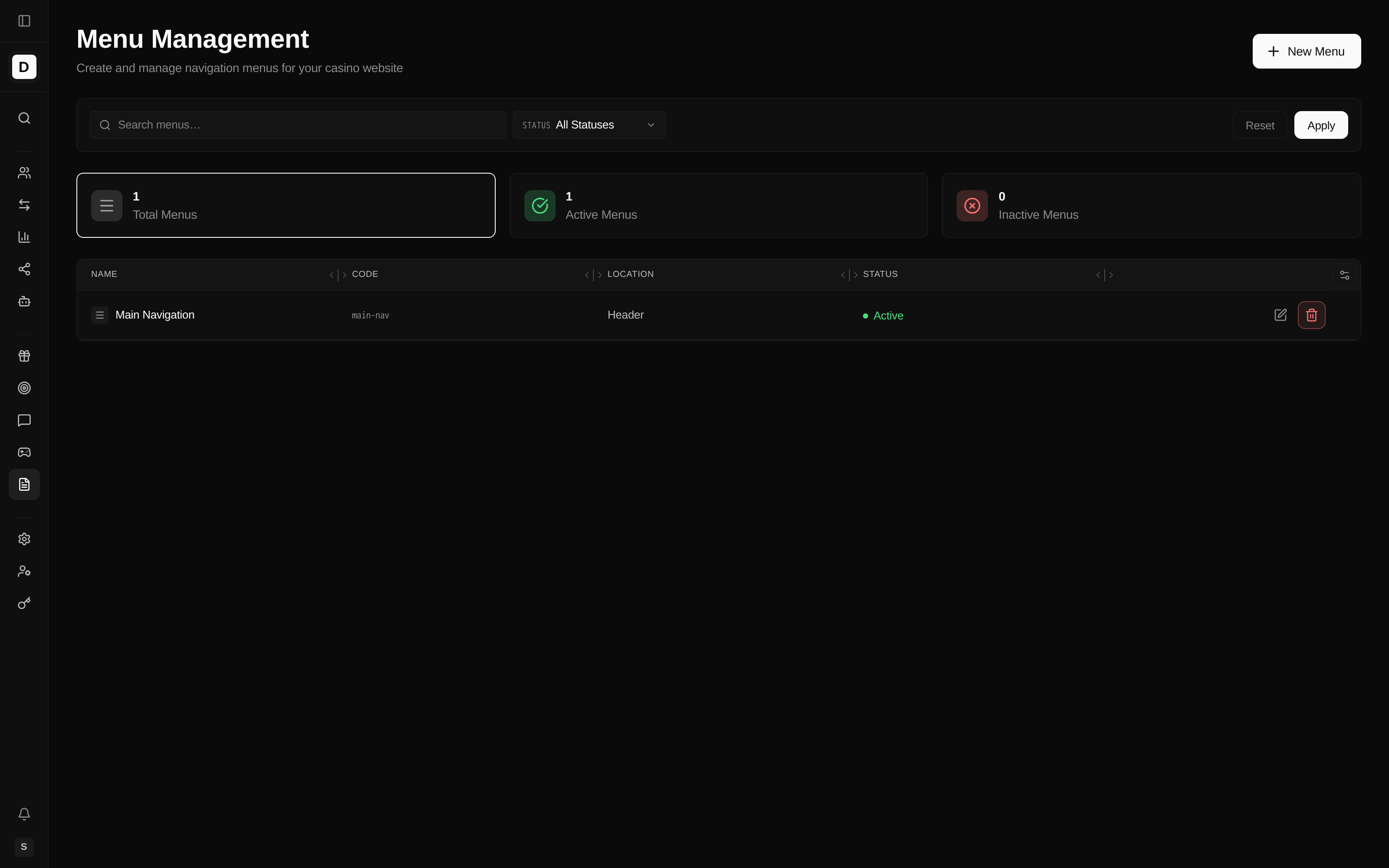
Menu Columns
| Column | Description |
|---|---|
| Name | Display name of the menu |
| Code | Unique menu identifier |
| Location | Where the menu appears (Header, Footer, Sidebar, or Mobile Bottom Nav) |
| Status | Active or Inactive |
| Actions | Edit or Delete |
Each summary card is also a shortcut: selecting Total Menus, Active Menus, or Inactive Menus filters the table to that status.
Filtering Menus
- Search — find a menu by name.
- Status — show All Statuses, Active only, or Inactive only.
- Apply runs the current search and filter; Reset clears them.
Creating a Menu
Create a menu to add a new navigation area — for example a footer for legal links, or a mobile bottom bar — to your casino website.
- Click the New Menu button.
- Fill in the menu details:
- Name — display name (for example, "Main Navigation").
- Code — unique identifier (optional; auto-generated from the name if left empty). The code cannot be changed after the menu is created.
- Location — where the menu will be used:
- Header
- Footer
- Sidebar
- Mobile Bottom Nav
- Description — internal notes (optional).
- Active — enable or disable the menu.
- Click Create Menu.
Menu Locations
| Location | Description | Typical Use |
|---|---|---|
| Header | Navigation bar in the casino header (shown by the header versions that have a menu, in the Header only page layout) | Main site navigation |
| Footer | Bottom navigation | Legal links, secondary nav |
| Sidebar | Side panel | Category navigation |
| Mobile Bottom Nav | Bottom tab bar on mobile | Primary mobile navigation |
Header menus. The header menu shows the items of every active menu whose location is Header. When there are several, their items follow one after another in the alphabetical order of the menu names, and each menu's items keep the order you set. Items that do not fit in the header are cut off and the bar scrolls sideways. A brand that has no Header menu shows no navigation menu in the header, and the header menu is hidden on narrow screens, where players use the sidebar drawer instead. A change to a Header menu appears on the website after the menu cache is refreshed, which happens when you save.
Only one Mobile Bottom Nav menu is allowed per brand. When one already exists, the Mobile Bottom Nav location is shown as "(already exists)" and cannot be picked for another menu. A Mobile Bottom Nav always shows a built-in Menu button, plus up to 4 navigation items you add.
Managing Menu Items
Open a menu with the Edit action to manage its items inside the menu window.
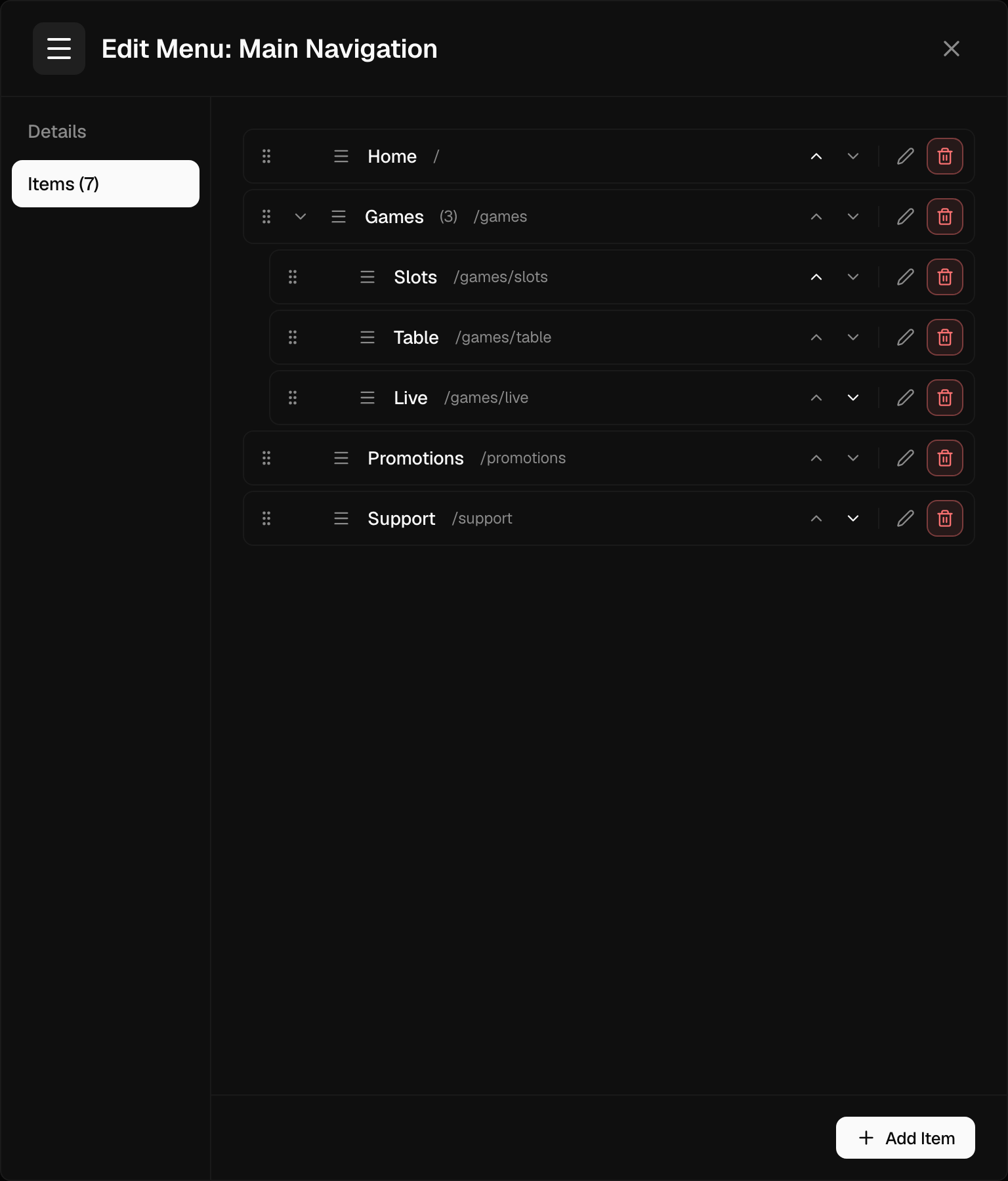
Item Tree Structure
Menu items appear in a hierarchical tree:
- Parent items at the root level
- Child items indented under their parents
- Multiple nesting levels supported
Creating a Menu Item
Add items to build out what players can tap or click within the menu.
- Click the Add Item button.
- Configure the item:
- Label — the item text, entered separately for each language you support.
- URL — the link destination (leave empty for a parent/container item that only groups children).
- Parent — choose a parent item, or leave as top level.
- Sort Order — position within its level.
- Icon — an optional icon (see below).
- Active — show or hide the item.
- Click Create.
For a Mobile Bottom Nav menu, each item also has an Item Type: a Link (with a URL) or a Search item that opens the site's search overlay.
Menu Item Fields
| Field | Description | Required |
|---|---|---|
| Label | Item text, entered per language | Yes |
| URL | Link destination | No |
| Parent | Parent menu item | No |
| Sort Order | Display order | Yes |
| Icon | Optional icon | No |
| Active | Show or hide the item | No |
Icons
The Icon picker lets you set an item's icon as a named icon, an emoji, or an uploaded image, so you can match your site's visual style.
Reordering Items
Sort order controls the order players see, so arrange the most important links first.
- Drag an item to reorder it within its level.
- Drag an item onto another to nest it as a child.
Editing Items
- Click the Edit icon on the item.
- Change the item details.
- Click Save.
Deleting Items
- Click the Delete icon on the item.
- Confirm the deletion.
- Any child items are deleted along with it.
Labels and Languages
Each item's label is entered per language, so the same menu reads correctly for every audience. For managing site-wide wording, see Translations.
Example Menu Structure
Main Navigation (header)
├── Home (/home)
├── Games
│   ├── Slots (/games/slots)
│   ├── Table Games (/games/table)
│   └── Live Casino (/games/live)
├── Promotions (/promotions)
├── Tournaments (/tournaments)
└── Support (/support)
Footer Navigation (footer)
├── About Us (/about)
├── Terms & Conditions (/terms)
├── Privacy Policy (/privacy)
├── Responsible Gaming (/responsible-gaming)
└── Contact (/contact)
Best Practices
- Keep top-level items to 5-7 for usability.
- Use clear, concise labels.
- Limit nesting to 2-3 levels.
- Enter a label for every language you support.
- Test navigation on mobile devices.
- Include all legally required links in the footer.
- Update menus when you add new sections to the site.
Deleting a Menu
- Click the Delete action on the menu.
- Confirm the deletion.
Warning: All of the menu's items are deleted along with it.