Sidebar Configurator
The Sidebar Configurator controls the player-facing sidebar on your casino website — the vertical panel players see while browsing. It is a drag-and-drop layout builder, separate from Menus: a menu is a set of links, while the sidebar is the full panel that can contain a menu alongside other components such as a loyalty widget, a banner, or social links.
The sidebar is brand-specific, so select the target brand before you begin — each brand has its own layout.
Section types
The sidebar is built from sections. Each section is one of these component types:
| Type | What it shows |
|---|---|
| Loyalty Progress | The player's loyalty tier and progress bar |
| Menu | A navigation menu chosen from your menu library |
| Banner | An image banner with a separate image per language, and an optional link |
| Social Links | Social network icons taken from the brand's settings |
Zones
The layout is split into two stacked zones:
- Upper Zone — sections at the top of the sidebar
- Lower Zone — sections pinned toward the bottom
Add sections to either zone and drag them to reorder within a zone. The order here is the order players see.
Accessing the Sidebar Configurator
- Open Content > Sidebar from the navigation menu.
- Choose the brand you want to configure.
- The page opens with a live preview of the sidebar on the left and a configuration panel on the right.
Previewing the sidebar
The left side of the page shows a running preview of the sidebar as players would see it, with the Upper Zone at the top and the Lower Zone at the bottom.
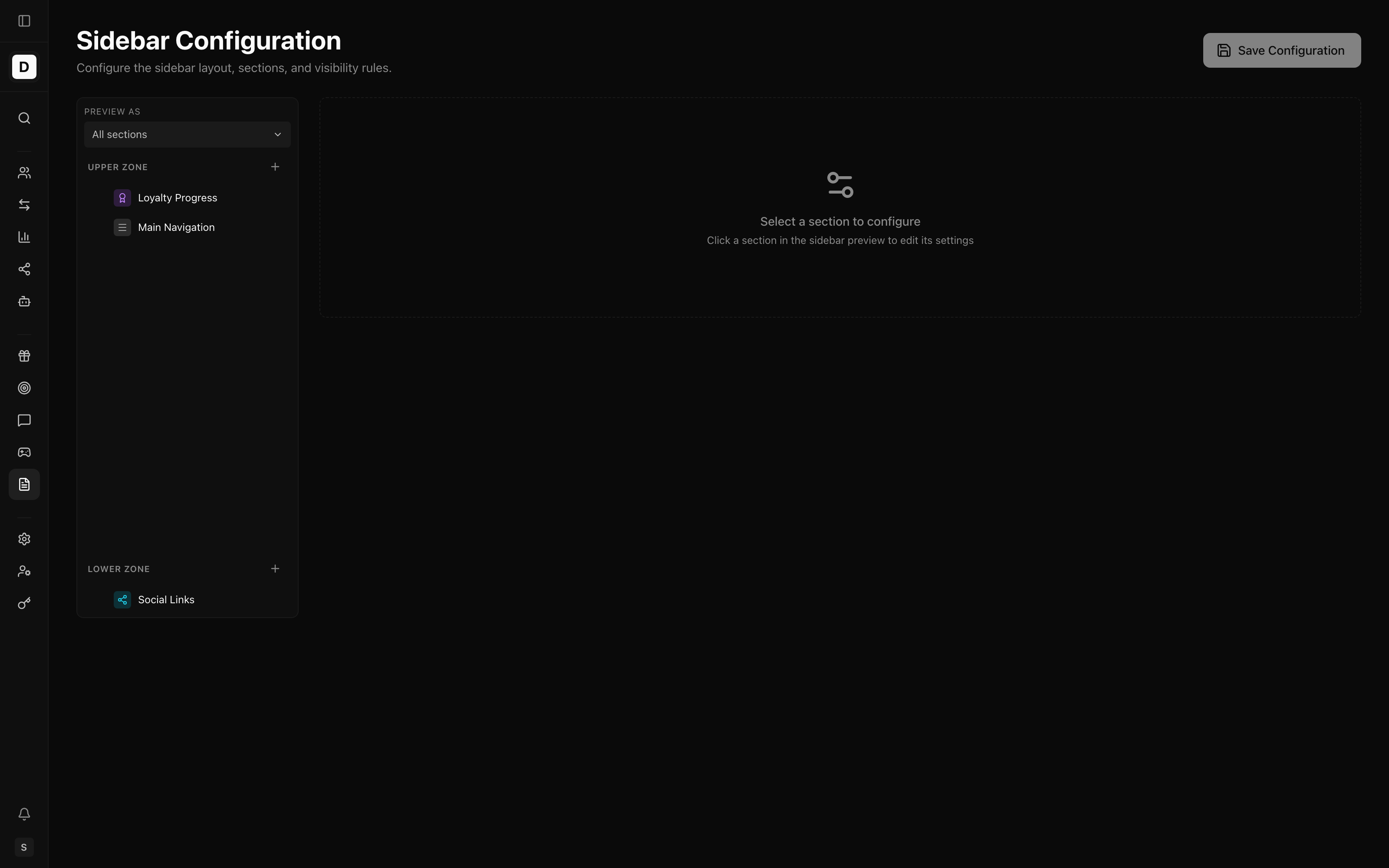
A Preview as selector at the top of the preview lets you check how the layout appears to a particular audience: All sections, a Guest (logged-out) visitor, a Logged-in player, or a specific player segment. Sections that would be hidden from the chosen audience are dimmed in the preview, so you can confirm your visibility rules before saving.
Adding a section
Adding sections lets you compose the exact panel each audience should see.
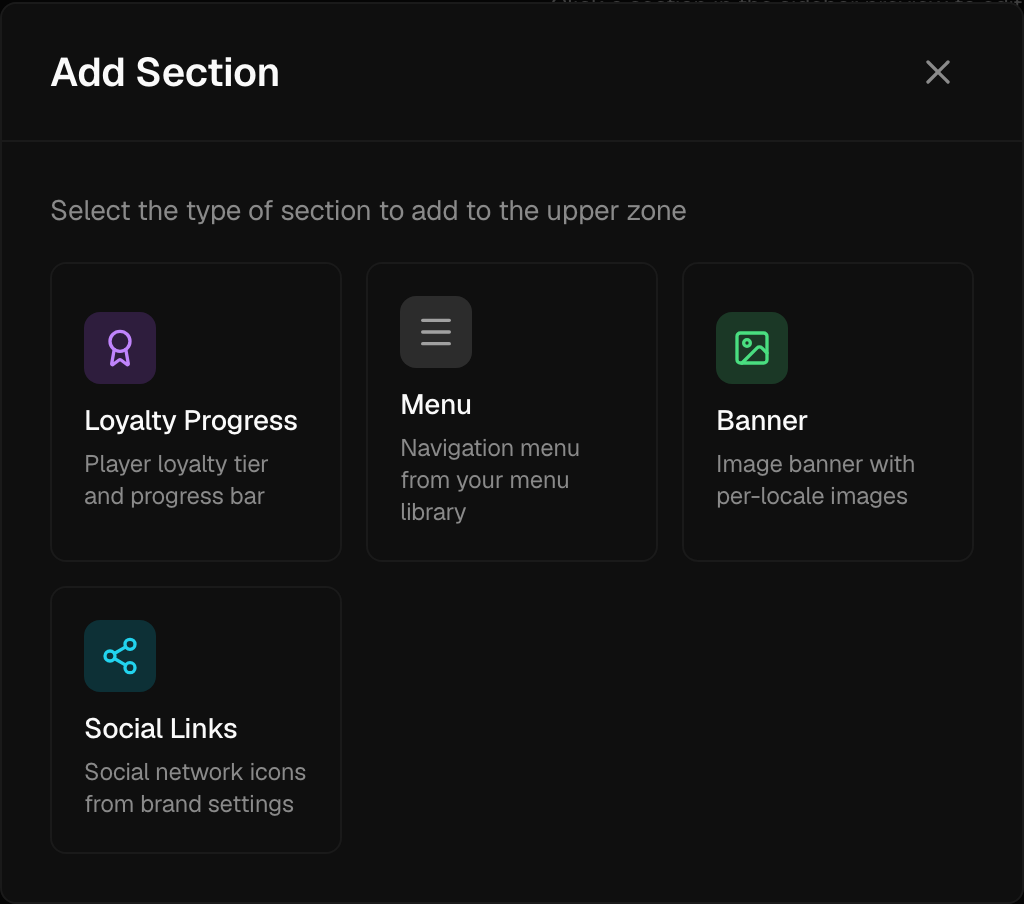
- Click the + button on the Upper Zone or Lower Zone heading.
- In the Add Section dialog, choose a section type (Loyalty Progress, Menu, Banner, or Social Links).
- The new section is added to that zone and selected for configuration on the right.
Configuring a section
Click a section in the preview to open its settings on the right. Use the chevron to collapse or expand the settings panel.
The content settings depend on the section type:
- Menu — choose which menu from your menu library to render.
- Banner — upload an image for each language (JPEG, PNG, WebP, GIF, or SVG). Language tabs mark
which locales already have an image, and you can set an optional Link URL — an internal path
such as
/promotionsor a full web address — that the banner links to. - Loyalty Progress and Social Links need no extra content. Social Links draws its icons from the brand's configured social networks.
The following settings are available on every section:
- Visibility — controls who sees the section, so you can target the right audience:
- Everyone — shown to all visitors
- Logged-in only — shown to authenticated players
- Guest only — shown to logged-out visitors
- Segment — shown only to logged-in players who belong to the segments you pick
- Hide when collapsed — hides the section when the sidebar is in its collapsed (narrow) state.
A Banner section has two extra settings. When Hide when collapsed is off, you can set a Collapsed Icon — an icon or icon image shown in place of the banner while the sidebar is narrow.
Activating and deactivating a section
Use the eye toggle on a section to turn it on or off without deleting it. A deactivated section carries an Inactive badge and is not shown to players, which lets you park a section for later without losing its settings.
Saving
Changes are staged as you edit. Click Save Configuration to persist the full layout — both zones, their order, and every section's settings. The button becomes available only when there are unsaved changes.
Removing a section
Use the remove (trash) action on a section to delete it from the layout, then save. This affects only the sidebar configuration — the underlying menu or banner the section referenced is left in place.