Game Segments
A Game Segment defines which games belong together — the reusable data source behind the game lists shown on your site. A segment describes the games (by game type, tag, featured state, and sort order); how those games look on a page — grid or carousel, number of games, autoplay, arrows, and dots — is set separately, on the page where you place the segment. Define the set of games once here, then reuse it across as many pages as you like.
Accessing Game Segments
- Expand the Content group in the sidebar and open Game Segments
- The list opens, with three summary cards above it
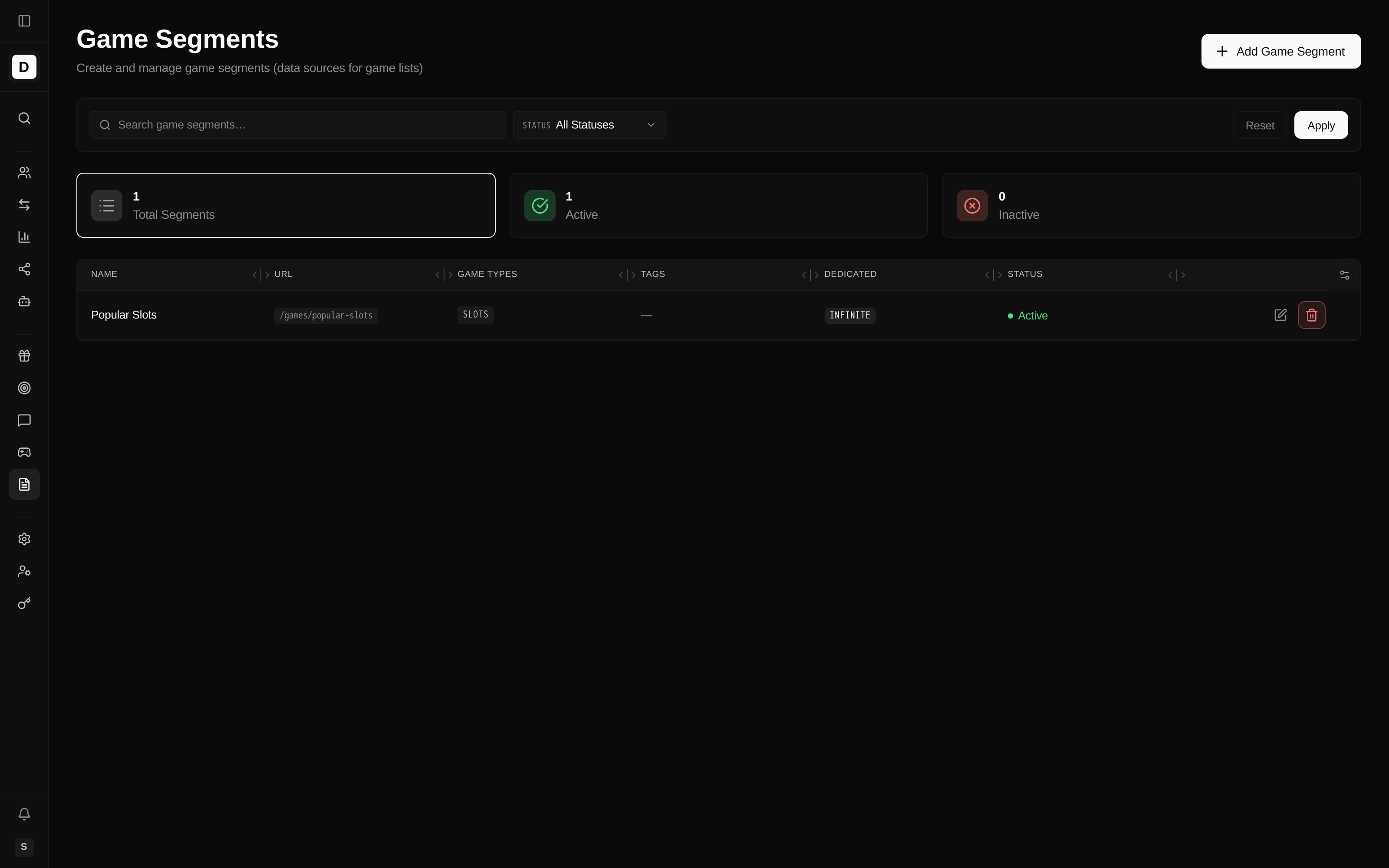
Summary Cards
Select a card to filter the list by that status.
| Card | Description |
|---|---|
| Total Segments | Number of segment configurations |
| Active | Segments currently enabled |
| Inactive | Segments currently disabled |
Game Segment Columns
| Column | Description |
|---|---|
| Name | Segment name (with its optional description) |
| URL | The public web address of the segment's dedicated page, /games/{slug} |
| Game Types | The game types included in the segment |
| Tags | Tags used to filter games into the segment |
| Dedicated | Dedicated-page mode — Infinite or Pagination |
| Status | Active or Inactive |
| Actions | Edit or Delete |
Filtering Game Segments
- Search — search by name or slug
- Status — All Statuses, Active, or Inactive
Creating a Game Segment
Grouping games into a segment lets you place the same curated set (for example "Popular Slots" or "New Games") on any page without re-picking games each time.
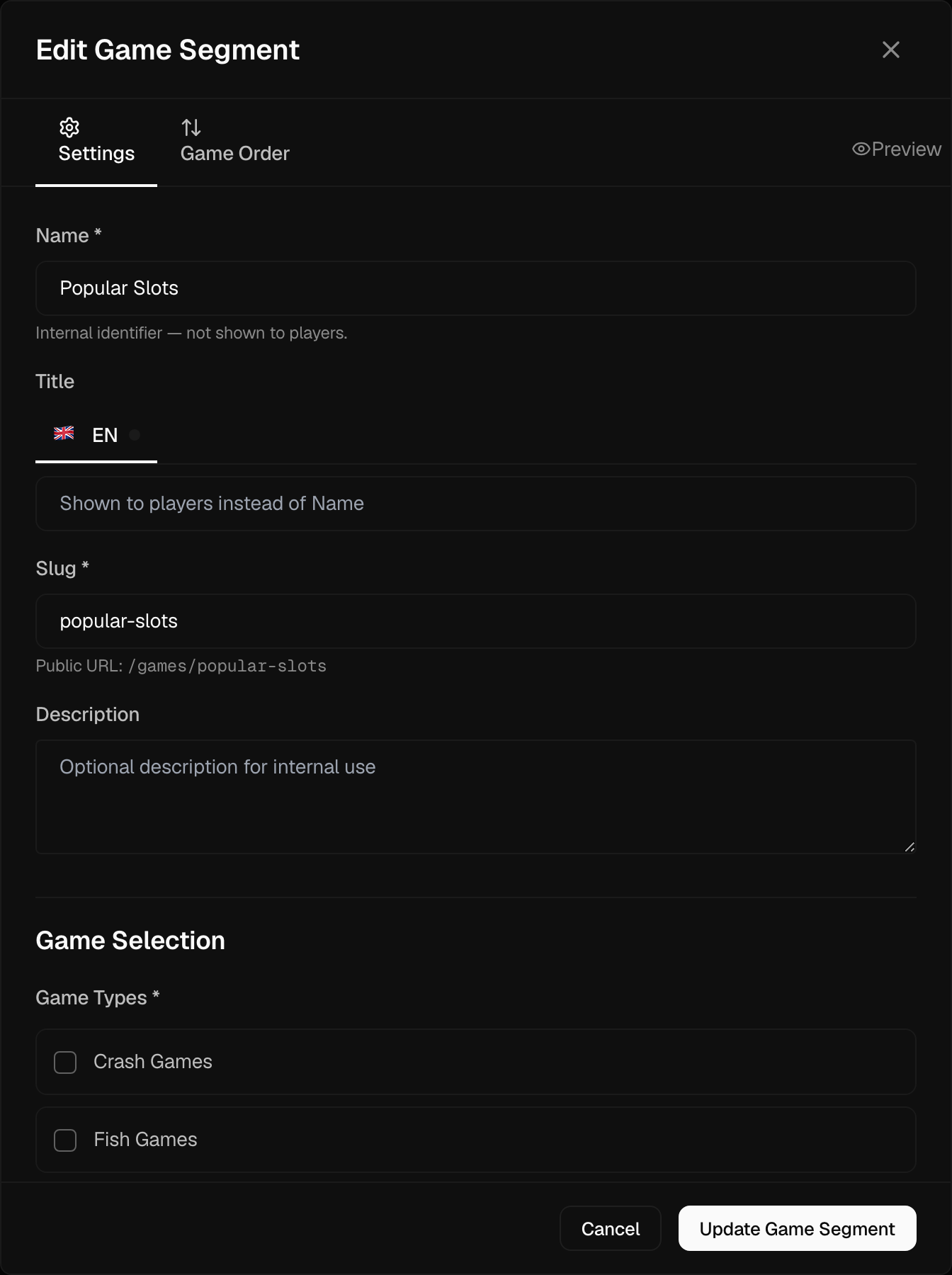
Segments are brand-scoped — select a brand first, then click Add Game Segment.
Basic Information
- Name — internal identifier for the segment; not shown to players.
- Title — the name shown to players, with a per-language field for multi-language brands.
- Slug — URL-friendly identifier; the segment's dedicated page is reachable at
/games/{slug}. - Description — optional notes for internal use.
Game Selection
- Game Types — one or more types to include (see the list below); at least one is required.
- Filter by Tags (optional) — games must have at least one of the selected tags; leave empty to include all games of the chosen types. Use this to narrow a broad type into a curated set.
- Sort Direction — Ascending (A–Z) or Descending (Z–A).
- Show featured games only — restrict the segment to games marked as featured.
Dedicated Page Settings
Each segment has its own standalone page at /games/{slug}; these settings control how that page
loads more games.
- Pagination Mode — Infinite Scroll or Page Numbers.
- Page Size — number of games per page (default 24).
Status
- Active — enable or disable the segment.
Game Types
Select one or more game types. Only the types your brand offers appear as options. The full set is:
| Type | Description |
|---|---|
| Slots | Slot machine games |
| Table Games | Blackjack, Roulette, Baccarat, etc. |
| Live Casino | Live dealer games |
| Crash Games | Crash / multiplier games |
| Fish Games | Fish-shooting games |
| Video Poker | Video poker variants |
| Instant Games | Instant-win games |
| Sport | Sports products |
| Other | Miscellaneous games |
Ordering Games
When you edit an existing segment, the modal has two tabs: Settings and Game Order. On the Game Order tab you can drag games into a custom order. A custom order overrides the default sorting (by global and country popularity), so you can hand-pick which games lead. Games left out of the custom order appear after the ordered ones. Use Reset to Default to clear the custom order and return to automatic sorting; a Custom badge appears on the tab whenever a custom order is in place.
Where Presentation Is Set
Display mode (grid or carousel), maximum games, the See-All link, autoplay, arrows, dots, and pause-on-hover are not part of a segment. You set them on the page section where the segment is placed. Set the data source here; set the look on the page.
Editing a Game Segment
- Click Edit on the segment row
- Update the configuration on the Settings tab, or reorder games on the Game Order tab
- Save to apply your changes
Deleting a Game Segment
- Click Delete on the segment row
- Confirm the deletion — this cannot be undone
Best Practices
- Use descriptive names and stable slugs — the slug is part of the public page address.
- Prefer Tags and the featured filter for a curated feel rather than including broad game types.
- Use the Game Order tab for hand-picked ordering; otherwise let sorting do the work.