System Notifications
System notifications are the automatic, transactional messages the platform sends in response to a player's own account activity — a welcome after sign-up, a verification code, a password-reset code, a new-device alert, and similar. They fire on their own as the events happen, so this page is where you decide which template each one uses and whether it sends. Every trigger is scoped to the brand you are viewing, so each brand can carry its own wording and on/off choices.
Each trigger sends over a set channel: an email, or a Short Message Service (SMS) text message for the phone-based ones.
Accessing System Notifications
Click Communications > System Notifications in the sidebar. The page lists every system trigger as its own configuration card, showing the trigger's name, when it fires, its current status, and the first few variables you can use in its message.
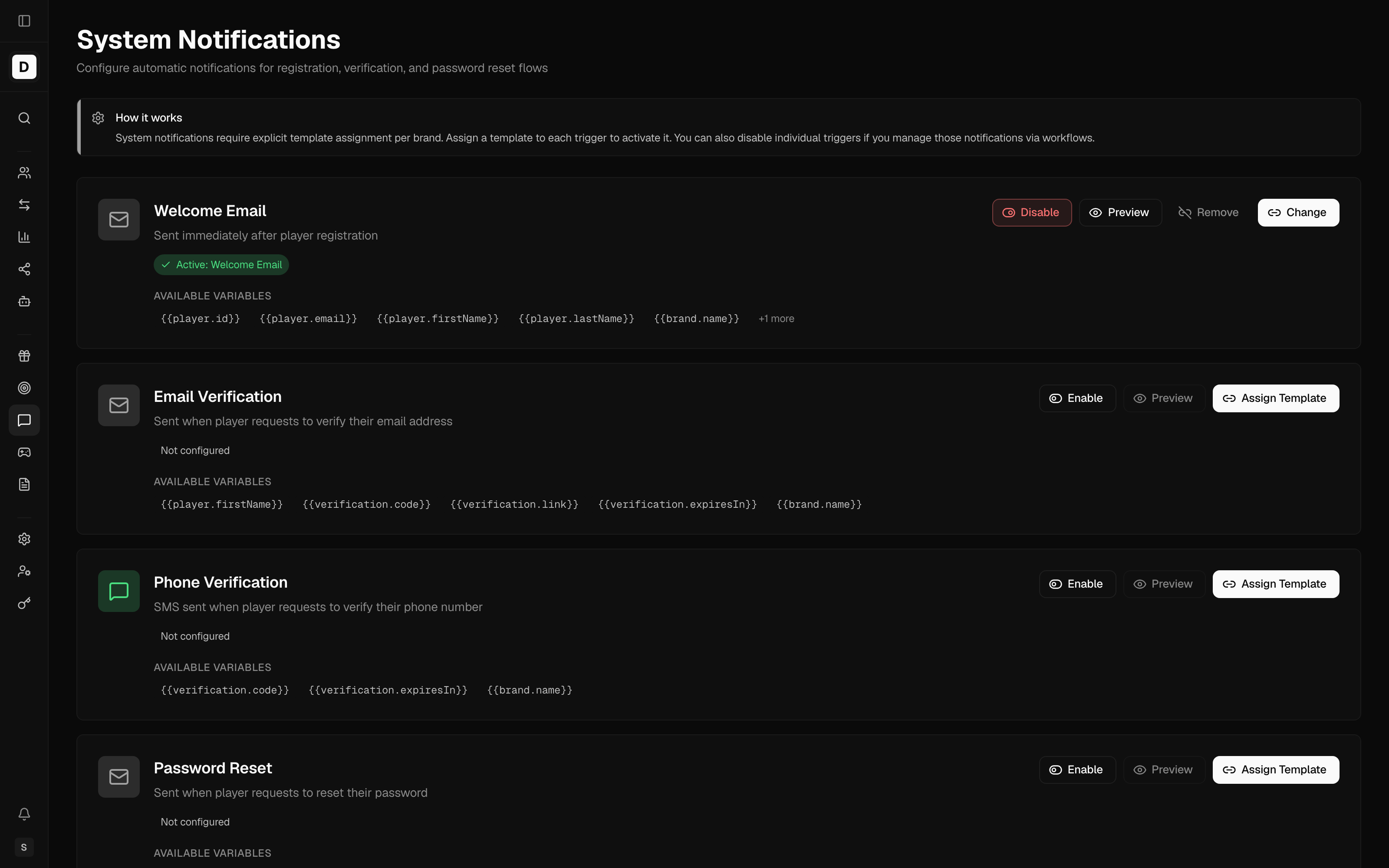
How it works
A trigger sends only once you assign it a template and switch it on. Assigning the template chooses the exact message a player receives for that event; switching the trigger on lets it deliver. You can also switch a trigger off when you deliver that message another way — for example through an automated workflow — so a player never receives it twice.
Trigger statuses
Each card shows one status at a time. Read it before changing a trigger so you know what will happen.
| Status | What it means |
|---|---|
| Not configured | No template is assigned yet. The trigger will not send. |
| Disabled | The trigger is switched off. Its template assignment is kept, but nothing is delivered. |
| Active | A template is assigned and the trigger is on. Messages send, and the card shows the assigned template's name. |
| Enabled (no template assigned) | The trigger is switched on but has no template, so nothing sends until you assign one. |
Triggers
Know Your Customer (KYC) is the identity-verification process for a Player.
| Trigger | Channel | When it fires |
|---|---|---|
| Welcome Email | Immediately after a player registers | |
| Email Verification | When a player asks to verify their email address | |
| Phone Verification | SMS | When a player asks to verify their phone number |
| Password Reset | When a player asks to reset their password | |
| Password Reset SMS | SMS | A password-reset code delivered over the SMS channel |
| Password Changed | After a player's password is successfully changed | |
| New Device Login | When a player signs in from a device not seen before | |
| KYC Verification Request | When an operator prompts a player to complete identity verification |
Actions
Each card carries the controls below for operators who are able to manage templates. Preview is available to anyone who can see the page.
- Assign Template — Pick one of the brand's templates that matches the trigger's channel; only templates for the matching channel (email or SMS) appear in the list. Do this to choose the exact message players receive for the event, in your brand's wording. If the trigger already has a template, this control reads Change. If the brand has no template for that channel yet, the window links you straight to creating one.
- Enable / Disable — Switch delivery on or off. Disable a trigger when you handle that message another way, so players are not messaged twice; disabling keeps the template assignment in place for when you switch it back on.
- Preview — Render the assigned message with sample data so you can check the wording before any player sees it. The trigger must be assigned and enabled for Preview to be available.
- Remove — Take the assigned template off the trigger, for example when you are retiring a template. The trigger becomes inactive until you assign a new one. You are asked to confirm first.
Variables
Each trigger exposes its own set of variables in addition to the common {{player.*}} and
{{brand.*}} fields. The card shows the first few; a full message can use more. Examples:
- Email / Phone Verification —
{{verification.code}},{{verification.link}},{{verification.expiresIn}} - Password Reset —
{{reset.code}},{{reset.link}},{{reset.expiresIn}} - New Device Login —
{{device.name}},{{device.ip}},{{device.location}},{{login.time}}
Variables use the double-brace, dotted-path syntax described in Notification Templates.